Purchasing and Redeeming Store Credit
- 1
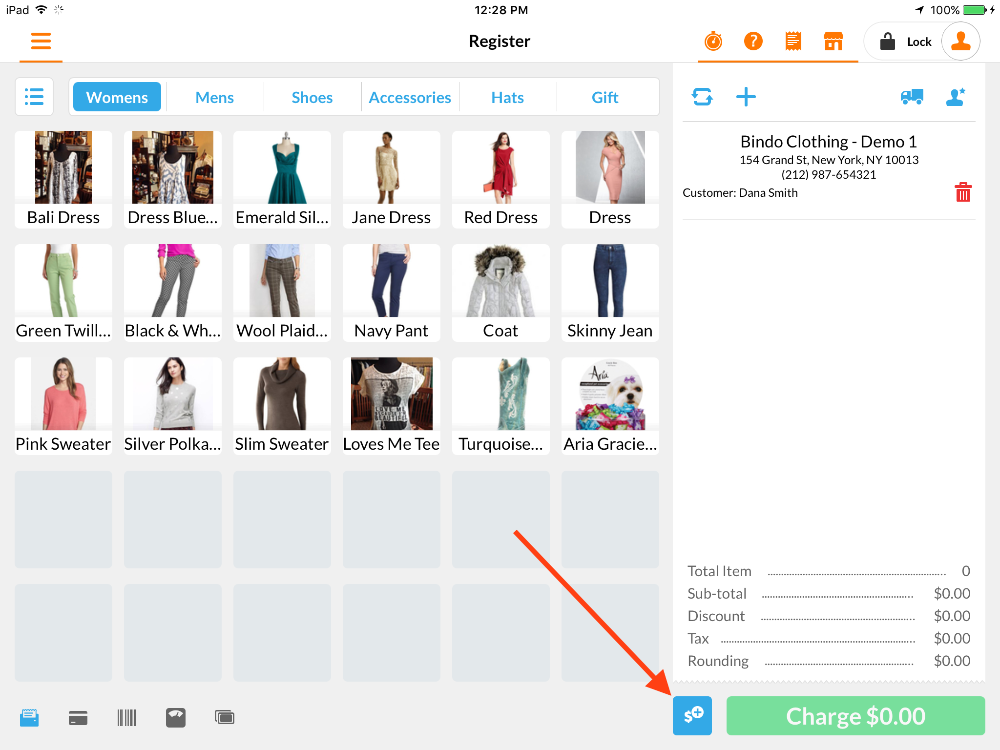
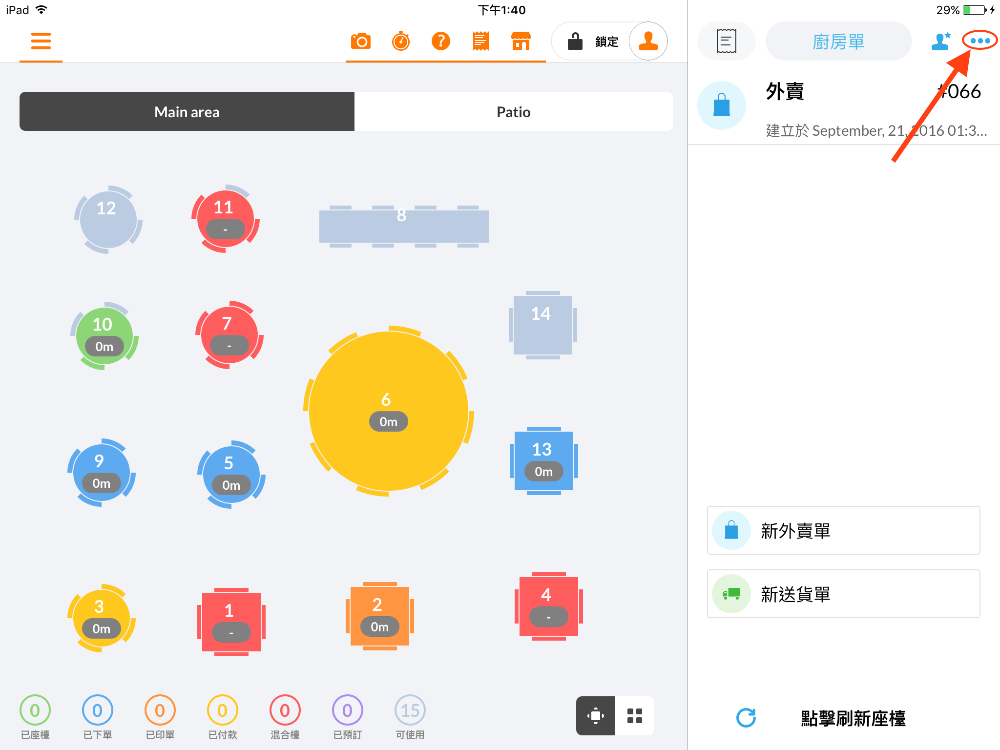
- In order to purchase store credit, you first have to add customer to the sale. Once you add the customer, click the blue $ button at the bottom of the register page. (Note: If the system is in Restaurant or QSR mode, you won't find the blue $ button at the bottom. Instead, you have to click the three dots button in the upper right-hand corner)
-
-
Retail Mode Pic
-
-
Restaurant/QSR Mode Pic
- 2
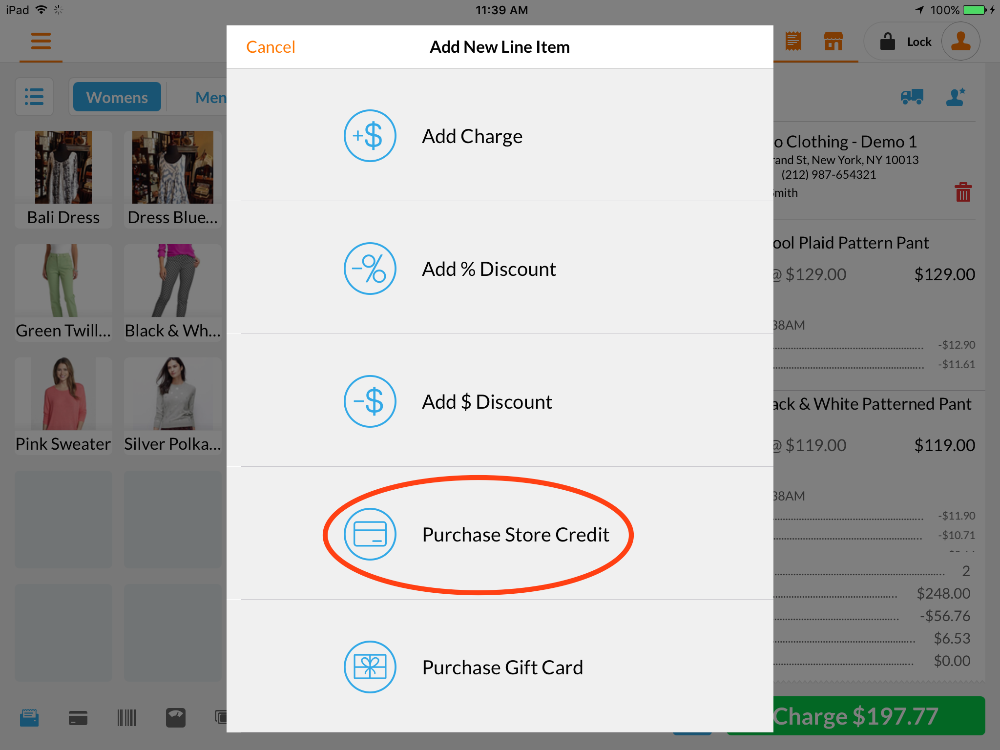
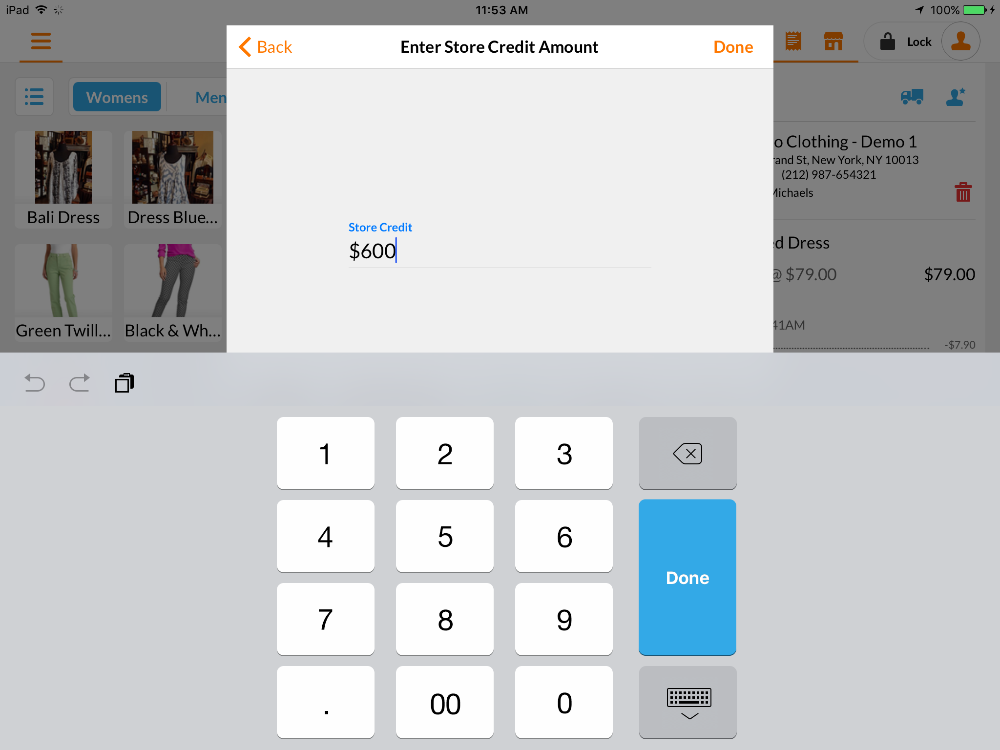
- Choose "Purchase Store Credit" option, enter the amount the customer want to purchase and tap "Done".
-
-
- 3
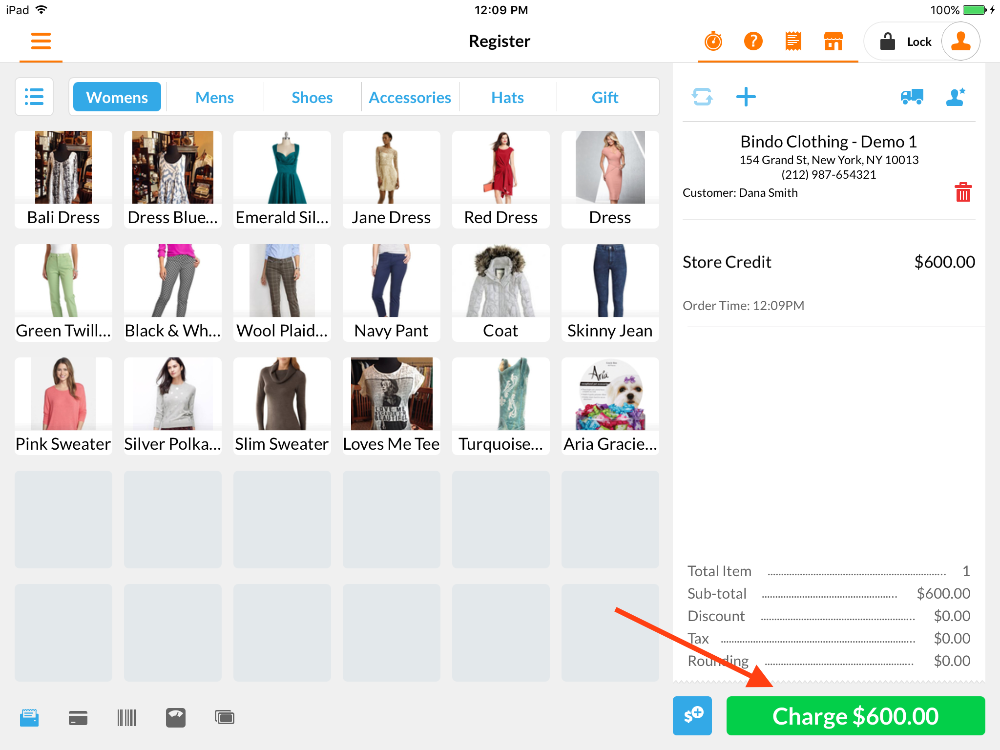
- The store credit will automatically be added to the item list. Ring up the customer like a normal sale. Tap on the "Charge" button and choose whatever payment option the customer wants to finish the transaction. Then, the store credit amount will be automatically added to customer's profile.
-
- 4
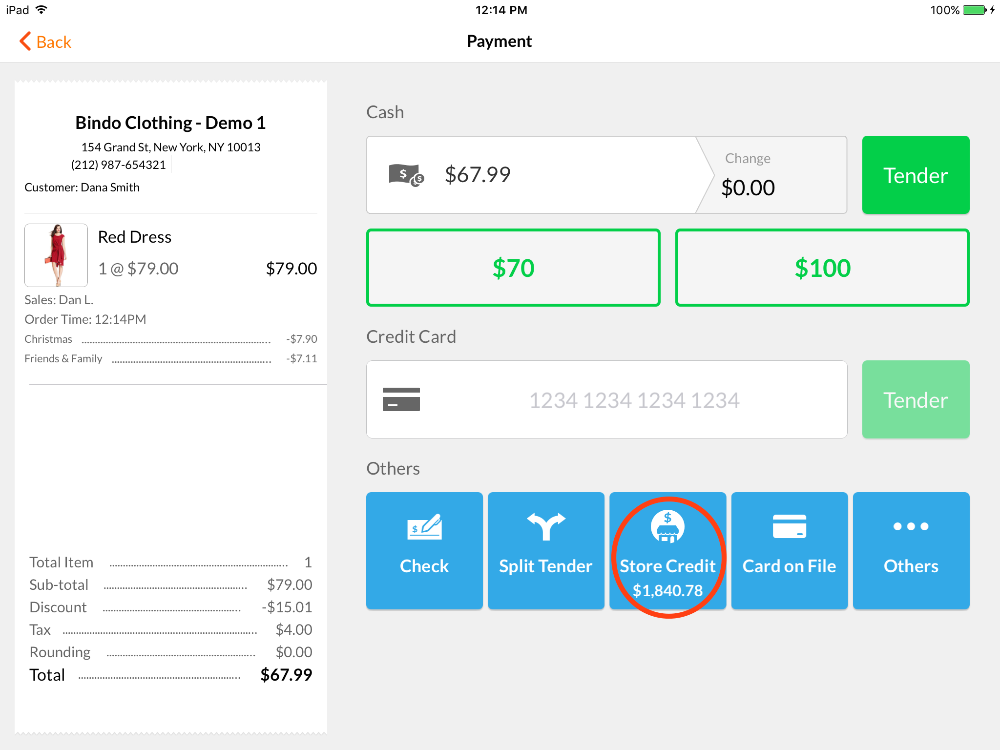
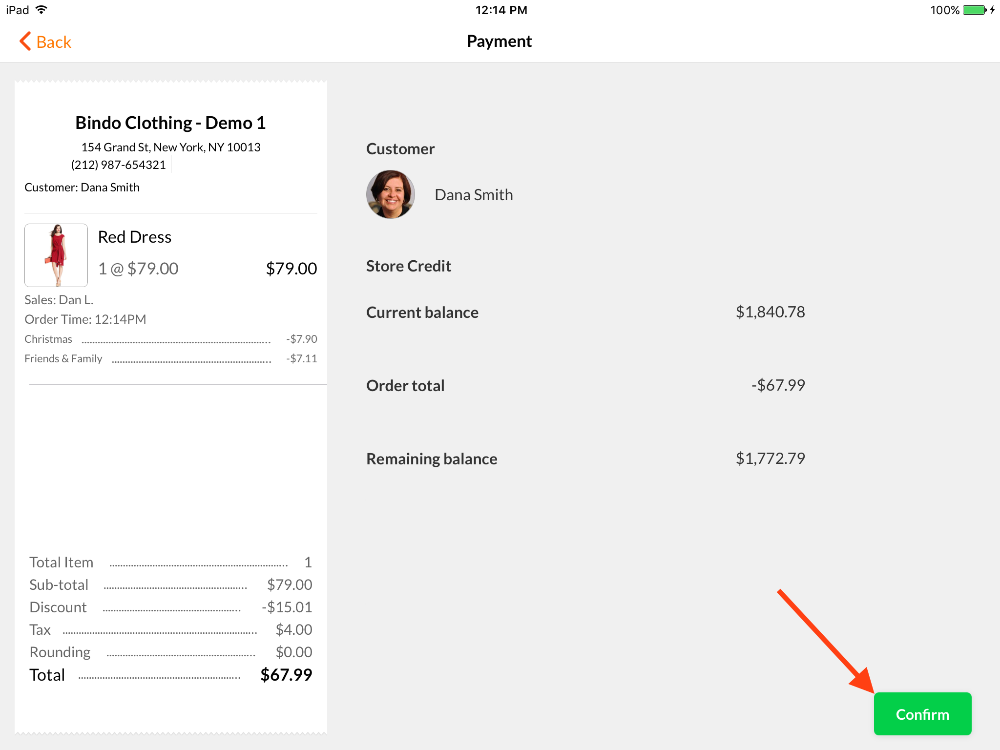
- To redeem store credit, tap on the blue "Store Credit" button in the payment option page and a confirmation window will pop up. Click the "Confirm" button and the transaction is completed.
-
-
- 5
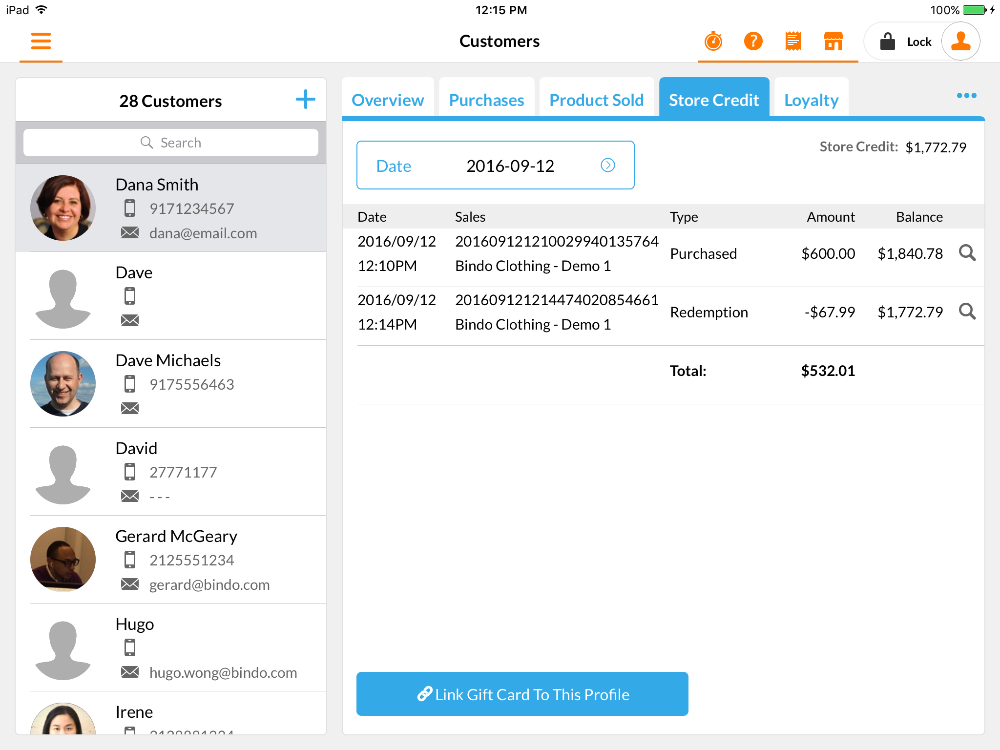
- Go to Sidebar > Customers and select store credit tap. You can always review the store credit's purchase and redemption history here.
-